Conseils pour bloquer un site Web

Conseils pour bloquer un site Web

There are different ways to block websites on Windows 10 and Windows 11, including using built-in parental controls, editing the hosts file, or using third-party software. Here are some methods you can try:



Using built-in parental controls: 

Go to Settings > Accounts > Family & other users > Add a family member > Add a child account. 

Follow the prompts to set up the child account. 

Go to family.microsoft.com, sign in with your Microsoft account, and select the child account you want to manage. Under "Content restrictions," select "Web browsing" and turn on "Block inappropriate websites.


Editing the hosts
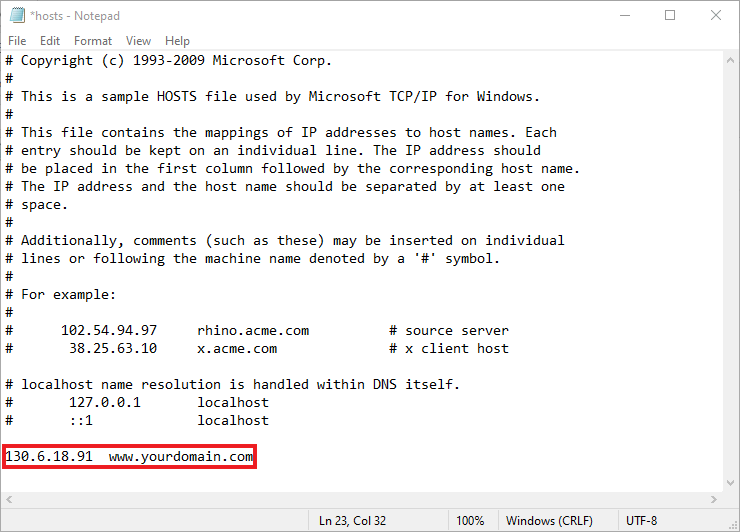


Open File Explorer and go to C:\Windows\System32\drivers\etc. 

Right-click on the "hosts" file and select "Open with" > "Notepad." 

Scroll to the bottom of the file and add the line: "127.0.0.1 www.example.com" (replace "www.example.com" with the website you want to block). 

Save the file and restart your web browser. 


Using third-party software: There are many third-party software options available for blocking websites on Windows, such as Cold Turkey, Qustodio, and Norton Family. 

Download and install the software of your choice, and follow the instructions to set up website blocking. 


Note that these methods may not be 100% effective in blocking websites, and determined users may be able to find ways around them.


En savoir plus  
Ce qu'une start-up doit avoir pour réussir

Ce qu'une start-up doit avoir pour réussir

Starting a successful start-up can be challenging, and there are many factors that can contribute to its success. Here are some essential things a start-up must have to succeed:

  1. A clear and compelling vision: A start-up needs a clear and compelling vision that inspires and motivates its founders, employees, and customers. This vision should be communicated clearly and consistently to everyone involved.
  2. A solid business plan: A well-written business plan will help a start-up to define its goals, target market, competitive landscape, and strategies for growth. This plan should be regularly reviewed and updated as the business evolves.
  3.  Sufficient funding: Adequate funding is critical for a start-up to cover its initial expenses, invest in growth opportunities, and stay afloat until it starts generating revenue. This can be achieved through various sources such as angel investors, venture capitalists, crowdfunding, or bootstrapping.
  4. A talented team: The success of a start-up depends on the talent and expertise of its team. It is essential to hire people who are passionate, skilled, and committed to the vision of the company. This team should have a mix of skills and experience that are relevant to the business.
  5. A strong online presence: In today's digital world, having a strong online presence is crucial for any start-up. A website, social media accounts, and other digital marketing channels are essential to reach and engage with potential customers.
  6. A unique value proposition: A start-up must offer a unique value proposition that differentiates it from competitors. It should clearly communicate the benefits of its products or services to potential customers. This can be achieved by offering a better product, service, or experience than what is currently available in the market.
  7.  Agility and adaptability: Start-ups must be agile and adaptable, willing to pivot their business model or strategies as needed to respond to changing market conditions or customer needs.
  8. A clear understanding of the target market: A startup must have a clear understanding of its target market and customer needs. This can be achieved through market research, customer feedback, and data.
  9. Effective leadership: Strong leadership is essential for a start-up to establish a positive company. Leadership requires a combination of vision, communication, empathy, decisiveness, and integrity, along with a willingness to learn, adapt, and grow as a leader over time.
En savoir plus  
Comment trouver des informations système sur un ordinateur Windows

Comment trouver des informations système sur un ordinateur Windows

Découvrez comment accéder et afficher les informations système sur un ordinateur Windows pour résoudre les problèmes et rassembler des détails importants sur le système.

La capacité à trouver des informations système sur un ordinateur Windows est précieuse pour résoudre les problèmes, mettre à niveau le matériel ou vérifier la compatibilité de votre système avec les nouveaux logiciels et jeux. Cet article vous présente différentes méthodes pour obtenir étape par étape diverses informations système.

Utilisation de l'outil d'information système

L'outil Informations système est un utilitaire intégré à Windows qui vous donne un aperçu du matériel, du système d'exploitation et des pilotes installés de votre système.

  • Appuyez sur la touche Windows + R pour ouvrir la boîte de dialogue Exécuter.
  • Saisissez « msinfo32 » et appuyez sur Entrée ou cliquez sur OK. Cette commande ouvrira l'outil Informations système.
  • Dans la fenêtre Informations système, le panneau de droite affiche un résumé des informations de votre système. Pour plus de détails, vous pouvez explorer les ressources matérielles, les composants et l'environnement logiciel en cliquant sur les entrées correspondantes dans le volet de gauche.
  • Pour enregistrer les informations système, accédez au menu Fichier et cliquez sur Exporter . Choisissez un emplacement, nommez votre fichier et cliquez sur Enregistrer pour exporter toutes les informations dans un fichier texte.

Utilisation de l'application Réglages

Windows 10 et 11 simplifient l'accès aux informations système de base via l'application Paramètres.

  • Ouvrez l'application Paramètres en cliquant sur le menu Démarrer et en sélectionnant l'icône d'engrenage, ou en appuyant sur la touche Windows + I.
  • Dans le menu Paramètres, accédez à la section Système , puis cliquez sur À propos en bas de la liste, sur le côté gauche.
  • Sur cette page, vous trouverez les spécifications de l'appareil telles que le modèle du système, le type de processeur, la RAM installée et le type de système (32 bits ou 64 bits).
  • En faisant défiler vers le bas, vous trouverez également les spécifications de Windows, notamment l'édition, la version et le numéro de build de votre système d'exploitation.

Utilisation de l'invite de commandes

Vous pouvez utiliser l'invite de commandes pour obtenir des informations système détaillées grâce à différentes commandes.

  • Appuyez sur la touche Windows + R , tapez « cmd » et appuyez sur Entrée pour ouvrir l'invite de commandes.
  • Pour obtenir une liste complète des informations système, saisissez « systeminfo » et appuyez sur Entrée. Vous verrez alors une liste détaillée, incluant la version du système d'exploitation, les informations réseau et les caractéristiques matérielles.
  • Pour des informations plus spécifiques, vous pouvez utiliser différentes commandes comme « wmic cpu get name » pour obtenir les détails du processeur ou « wmic memorychip get capacity » pour connaître la mémoire physique totale (RAM).

Utilisation de l'outil de diagnostic DirectX

L'outil de diagnostic DirectX peut s'avérer particulièrement utile pour obtenir des informations relatives aux fonctions multimédias, telles que les graphismes, le son et les entrées.

  • Appuyez sur la touche Windows + R , tapez « dxdiag » et appuyez sur Entrée pour ouvrir l'outil de diagnostic DirectX.
  • Ici, vous pouvez consulter les informations de votre système sous l'onglet Système , notamment le nom de l'ordinateur, la version du système d'exploitation, la version du BIOS, et plus encore.
  • Les onglets Affichage , Son et Entrée fou
En savoir plus